Friday, February 10, 2017

Warhol-esque Digital Painting


Before

After


I took a photo on photo booth and then I multiplied its width and height by 2. I then put 4 of the same photos into a new blank file. I went into effects and selected sketch and then I chose the stamp effect. I selected a layer (photo) and filled each one with a different color.

Sunday, January 29, 2017

30 photo challenge

day 1- self portrait:
 day 2- what I wore today:
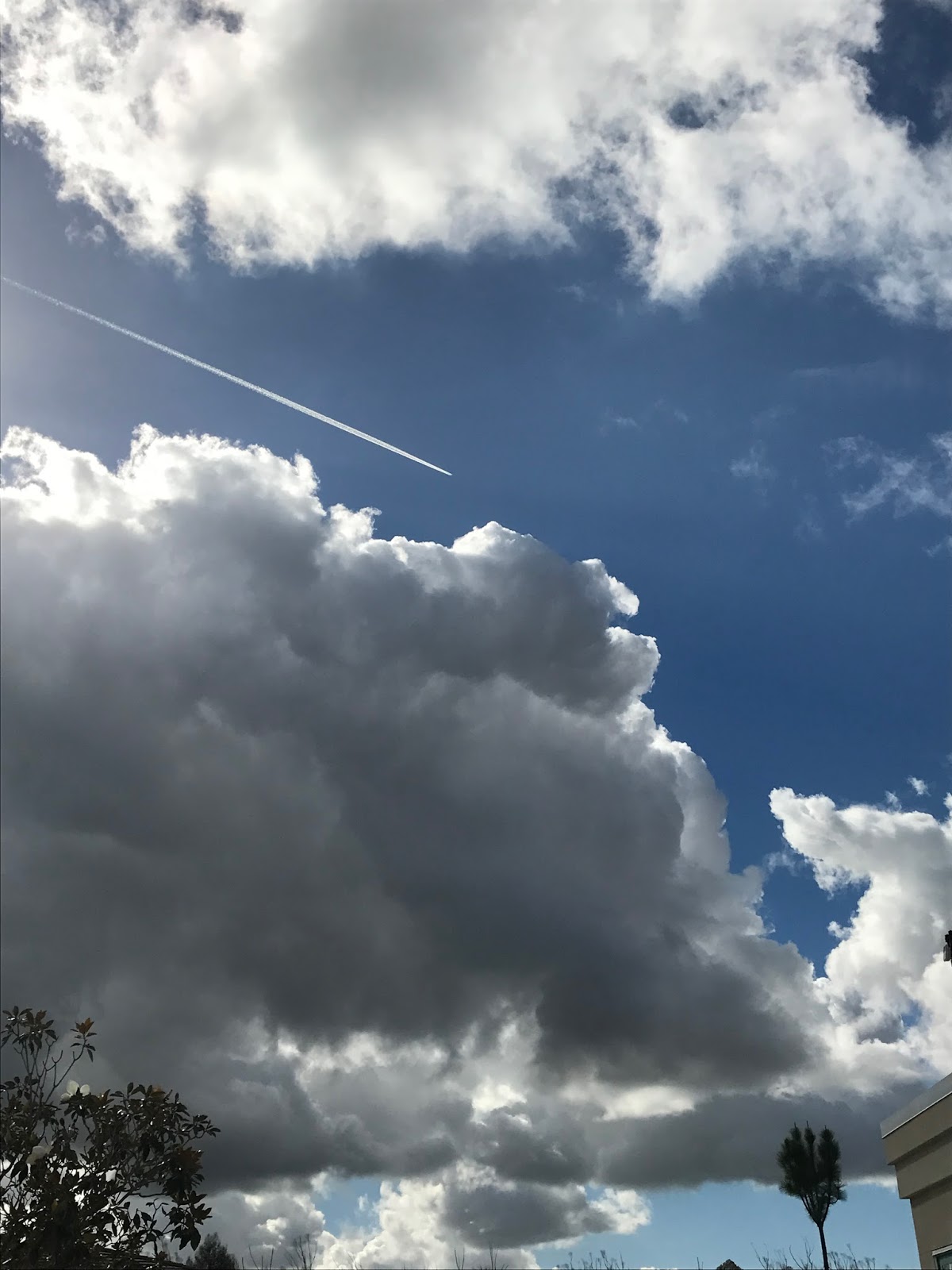
 day 3- clouds
 day 4- something green
 day 6- from a low angle
 day 7- fruit
 day 8- bad habit:
 day 9- someone I love:
 day 10- childhood memory
 day 11- something  blue
 day 12- sunset:
 day 13- me with 13 things:
 day 14- eyes:
 day 15- silhouette
 day 17- technology
 day 18- my shoes:
 day 19- something orange:
 day 20- bokeh:
 day 21- faceless self portrait:
 day 22- hands:
 day 23- sunflare:
 day 24- animal:
 day 25- something pink:
 day 26- close up:
 day 27- from a distance:
 day 28- flowers
 day 29- black and white:
 day 30- self portrait:

Wednesday, January 25, 2017

New Snapchat Logo


In this project I went online and found a shape that matched the shape of the snapchat logo and then I made it a stencil. Then I went online and found another image and I wanted to replace the ghost of the snapchat logo with this lion head sort of shape. On artrage I made the lion face shaped image a stencil and placed it on top of the square. Lastly I chose the colors I wanted and painted my new snapchat logo.

Tuesday, January 3, 2017

Rhythm/Movement ArtRage 2 deluxe


For this project I went onto ArtRage 2 Deluxe and selected snowflake stencils. Then I placed the stencil where I wanted it and selected the glitter gun tool and painted over the stencils. I repeated this for every snowflake that I did.

Rothko-esque Painting in ArtRage


For this project I went onto ArtRage 2 Deluxe and used the paint tube tool and painted the background blue. Next I smeared it with the palette knife tool. The next thing I did was select the airbrush tool and painted red, green, and then pink. Then I smeared those three colors with the palette knife tool. I kept going around and smoothing it until I got it to where I wanted it. I even added white in between each of the colors to make it shade better. 

Thursday, December 8, 2016

Megan Fox- Celebrity With Animal Name


In this project I found an image of Megan Fox and a image of a fox. I lassoed around the fox's left eye and then put they eye over Megan Fox's eyes. Next I lassoed around the fox's ears and put them onto Megan Fox's head. The next thing I did was I cut around the fox's snout and put it onto her face and blended it in to make it look more realistic. It looked really weird because she didn't have a mouth so I then went and searched another image of a fox and lassoed the mouth and added it underneath the other fox's snout. The very last thing I did is I got a frame and framed the new Megan Fox and put her name at the very top.

Thursday, December 1, 2016

scanned felt tip drawing


I drew the drawing on the bottom by hand and then scanned it and put it on a flash drive. I then put it into my computer and colored it on photoshop.